Remote Talent / Invoicing
Invoicing
A proper invoice, in about a minute.
Invoice like a company — no company needed. Remote Talent LLC issues it on your behalf, in EUR, USD or GBP, with EU reverse charge handled and a payment link your client can pay by card, bank transfer or USDC.

The flow
Open the app, send an invoice, close the app.
Most of an invoice is information you have already given us once — the client, the rate, the currency, where the money should go. So the app fills it in and leaves you the part that changes.
Pick a client or a contract
Choosing a signed contract pulls its rate, currency and billing frequency straight onto the invoice.
Dates are already right
Issue date is today, due date follows your terms. Change either if you need to.
Add the line items
Description, quantity and rate, or a fixed amount. Totals and tax update as you type.
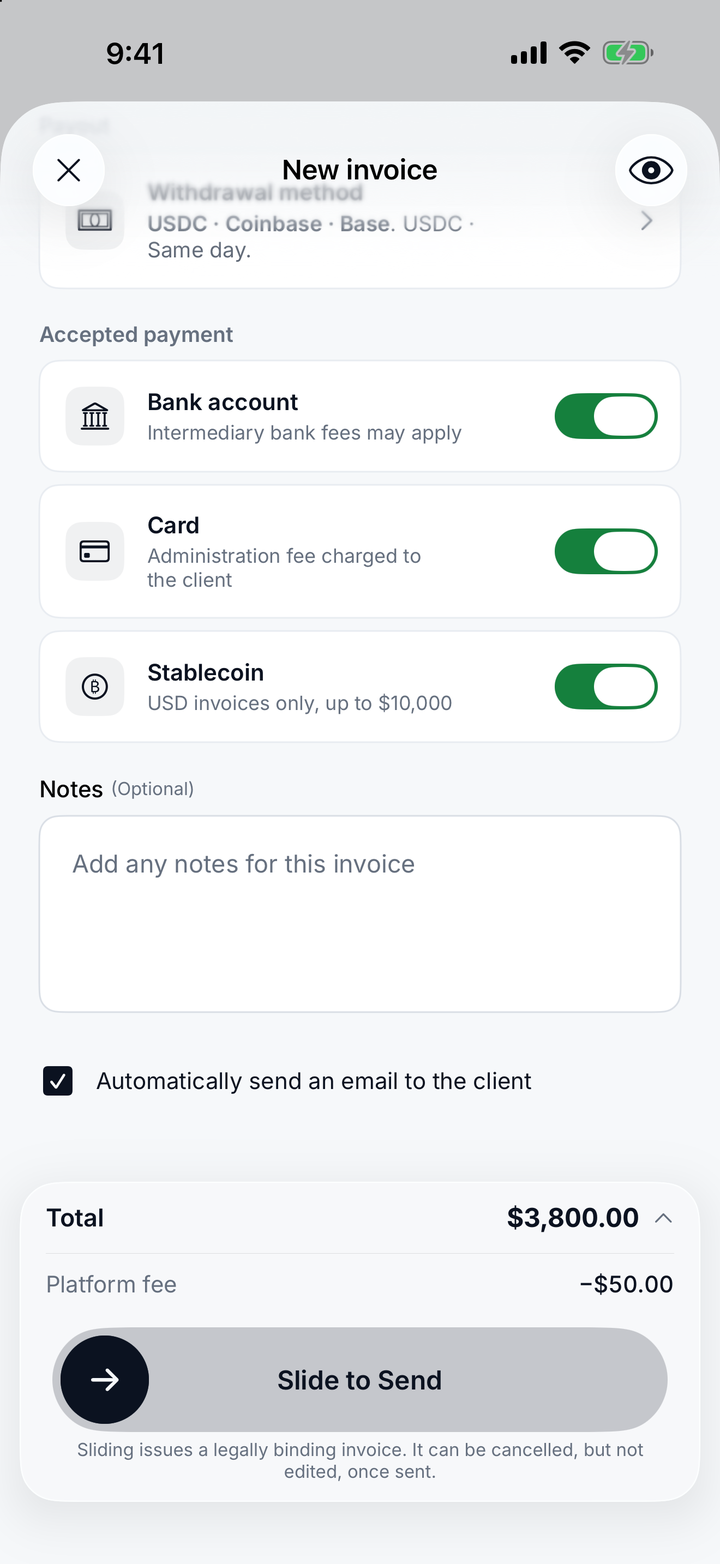
Choose how they can pay, then slide
Toggle bank transfer, card and USDC for this invoice, then slide to send — a deliberate gesture. Your client gets the invoice and a payment link by email.
Cross-border
A company invoice, with VAT done properly.
Billing across borders is where most invoicing tools quietly get it wrong — the wrong currency on the receipt, or missing reverse-charge wording that makes the invoice unusable for your client's accountant.
Euros, dollars or pounds
Bill in EUR, USD or GBP. The invoice, the payment page and the receipt keep that currency; lists that mix currencies show each one separately rather than adding them up.
Reverse charge, worded correctly
Cross-border EU B2B invoices carry the reverse-charge statement automatically, so VAT is accounted for by your client rather than charged by you.
VAT numbers verified
Client VAT numbers are checked before they go onto a document — a wrong number is the usual reason an invoice comes back.
Issued by Remote Talent LLC — no company needed
Every invoice is issued by Remote Talent LLC on your behalf, with your name, your work and your rate on it. Your client gets a company invoice; you don't have to form one.
Live status
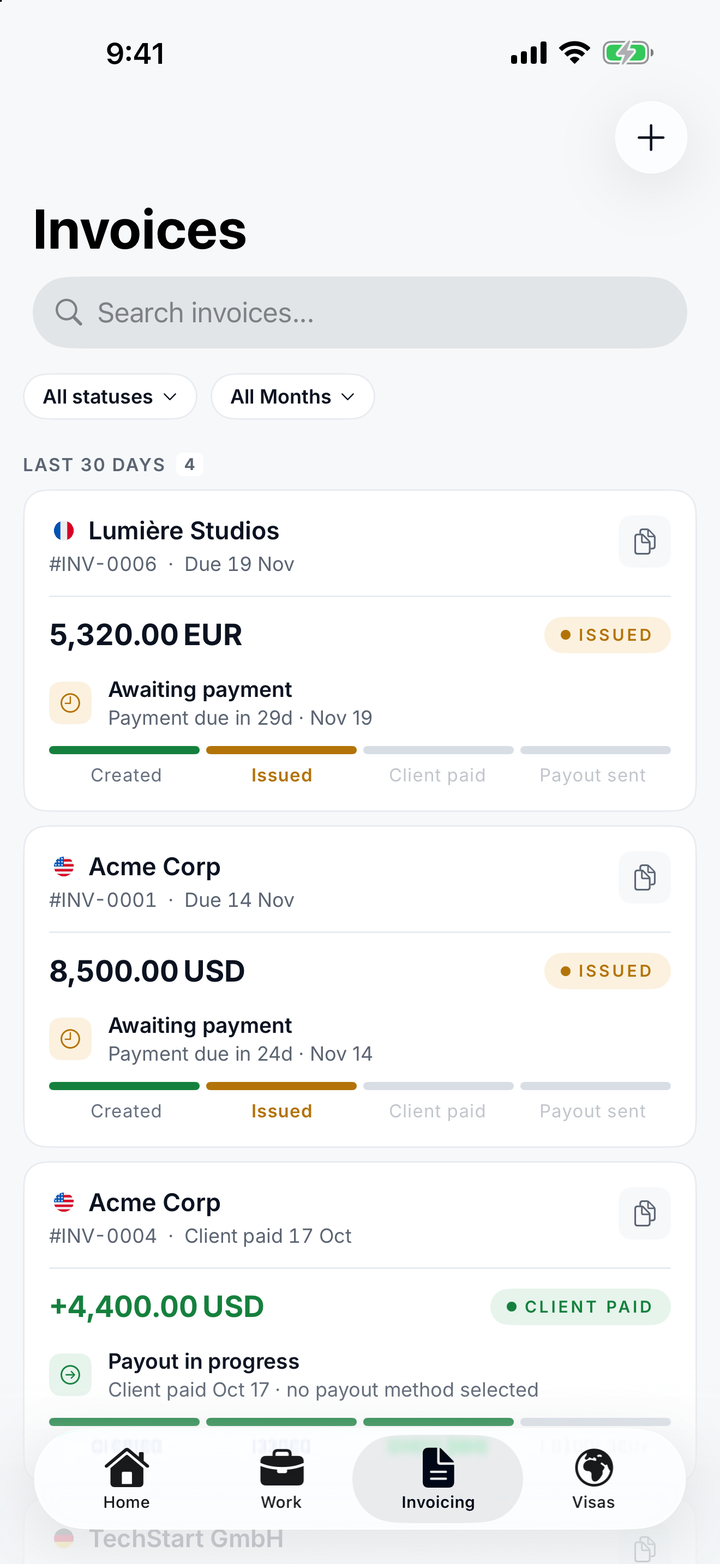
Five states, and none of them are ambiguous.
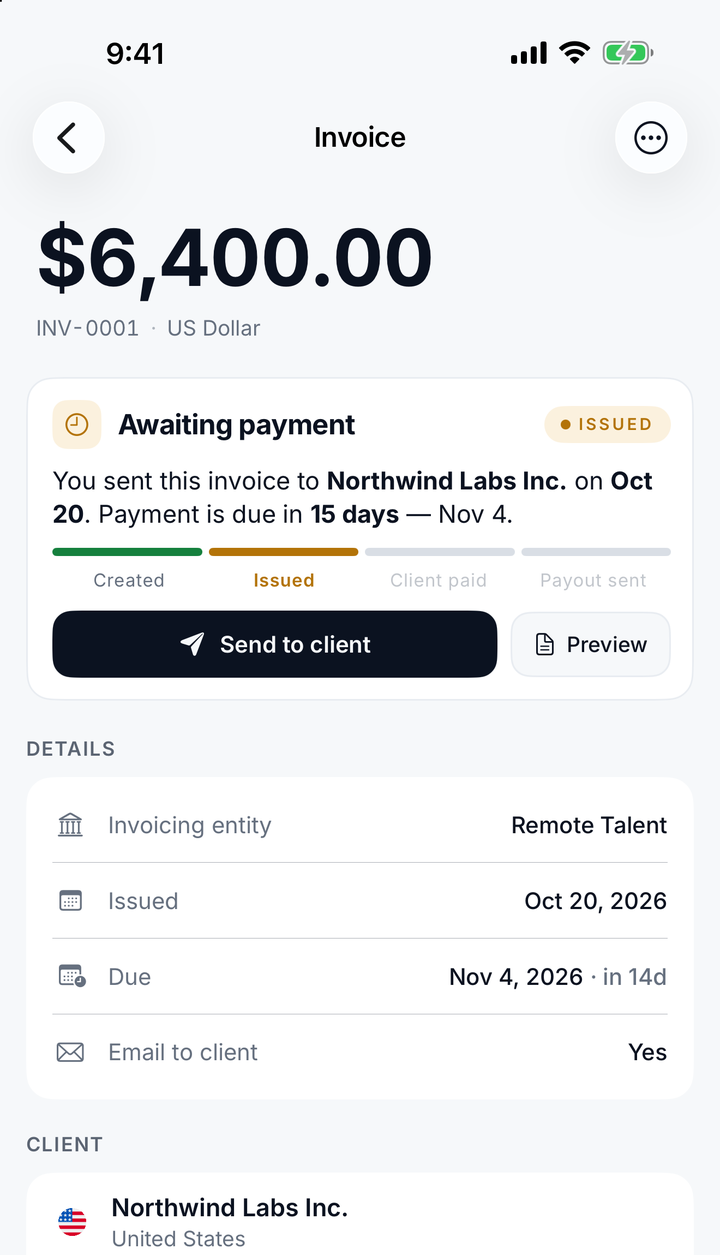
Created, issued, client paid, payout sent — each one updates in the app the moment it changes, without a refresh.
| State | What it means |
|---|---|
| Draft | Written but not sent. Costs nothing, edit freely. |
| Issued | With your client, payment link included, waiting for payment, not yet late. |
| Client paid | Your client's payment is confirmed and the flat fee has been deducted. Your payout is in progress. |
| Payout sent | Remote Talent has sent the payout to the withdrawal method attached to this invoice. |
| Overdue | Past the due date. Surfaced on the home screen with the client and the days late. |
Documents you can actually file.
A PDF invoice built to a document spec
Issuer and recipient blocks, document number, dates, line items, totals, status, payment instructions and a legal footer. Nothing decorative.
A matching payment receipt
Generated when the money arrives, referencing the invoice it settles.
A transfer receipt
For the payout leg — what left, when, and to which method.
Hours from the timer
Track time with the Lock Screen and Dynamic Island timer, attach the month's timesheet, and the hours appear on your client's payment page — locked once invoiced.
Keep reading
The rest of it.
Invoice like
a company.
No company needed. Clients pay by card, bank transfer or crypto, and you get paid your way — for one flat fee per paid invoice.